STEP 2 – Using It Again (Second Time and Beyond)

Getting Started with Smapocke - Using It Again (Second Time and Beyond) How to Get Started

How to use the Smapocke ( Smart Pocket ) App after the first setup

From the second time onward, you can directly access Smapocke App through Phantom Wallet.
Follow the steps below to open the app screen.


1. Open App: Launch Phantom Wallet

1. Tap the Phantom Wallet app to open it.
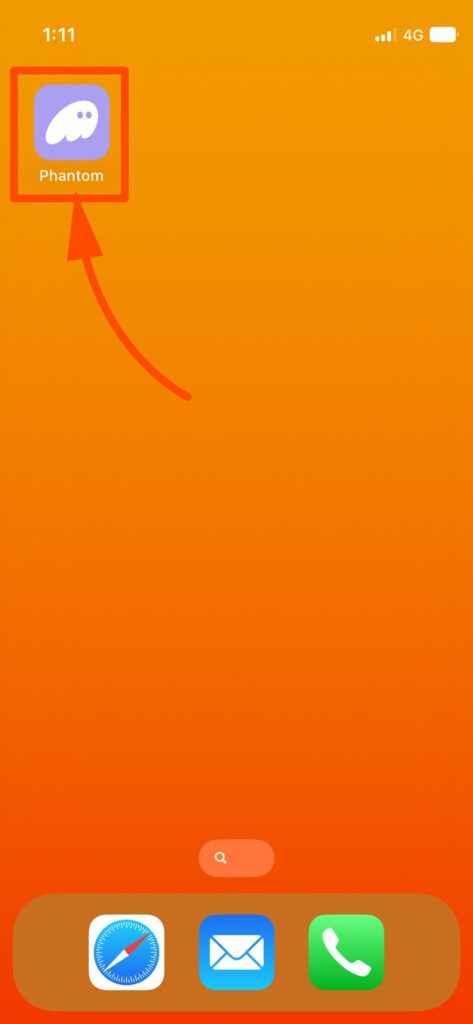
Smapocke - How to Get Started - STEP 2 – Using It Again (Second Time and Beyond)

(When opened, you will see the home screen like the example below.)
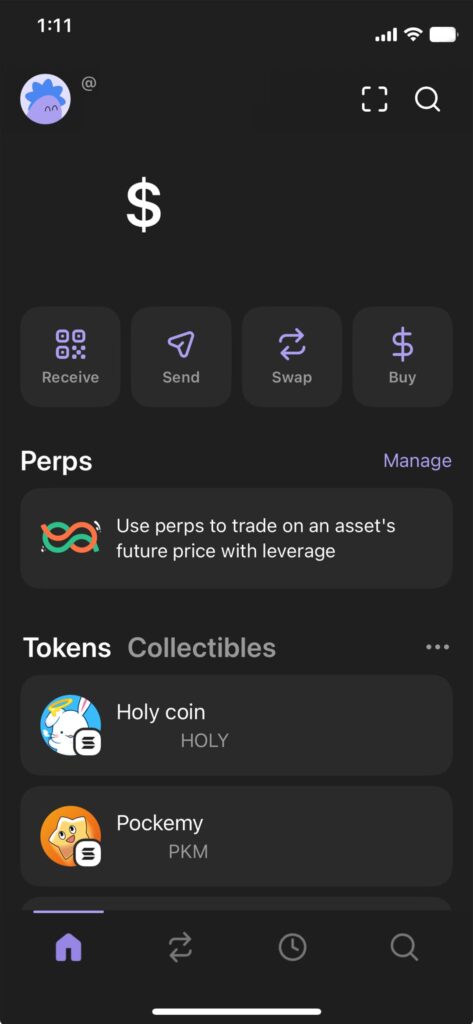
Smapocke - How to Get Started - STEP 2 – Using It Again (Second Time and Beyond)


2. Access: Open Smapocke from Favorites

1. Tap the search icon (magnifying glass) at the bottom right.
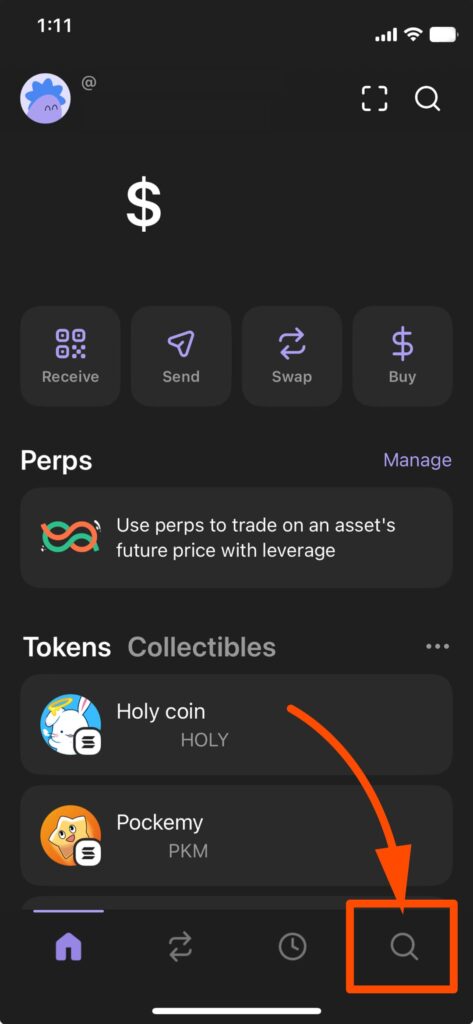
Smapocke - How to Get Started - STEP 2 – Using It Again (Second Time and Beyond)


2. Tap the “+” icon at the top right.

If you see “1” or another number instead of “+”, follow the alternative steps below.
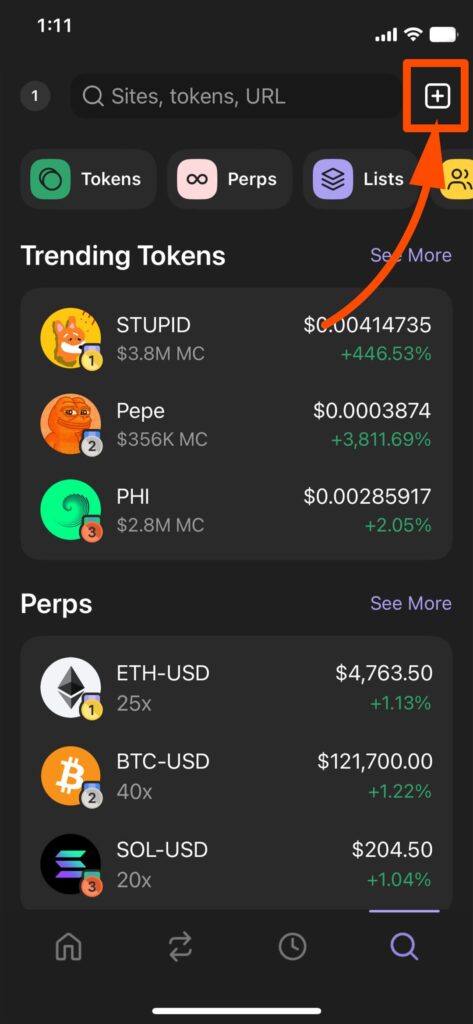
Smapocke - How to Get Started - STEP 2 – Using It Again (Second Time and Beyond)


3. You’ll see the shortcut for Smapocke that you saved during the initial setup.
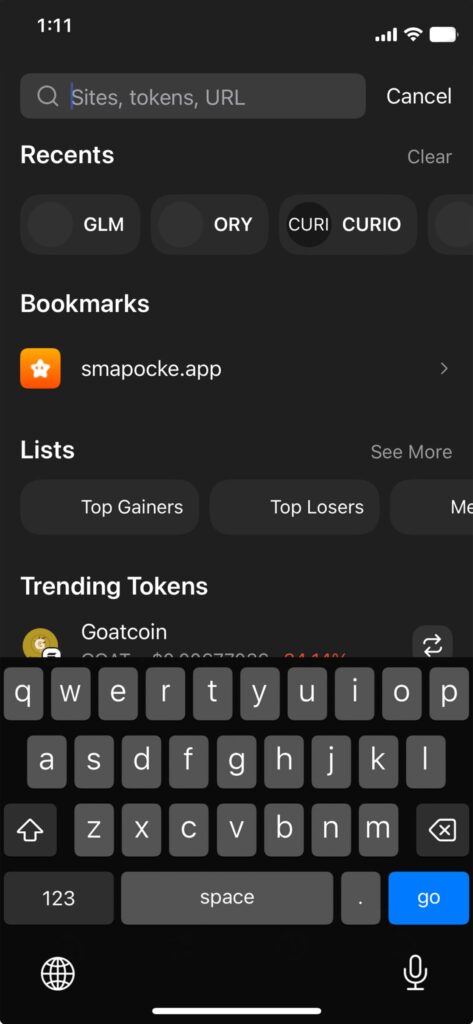
Smapocke - How to Get Started - STEP 2 – Using It Again (Second Time and Beyond)


4. Tap the item labeled “smapocke.app.”
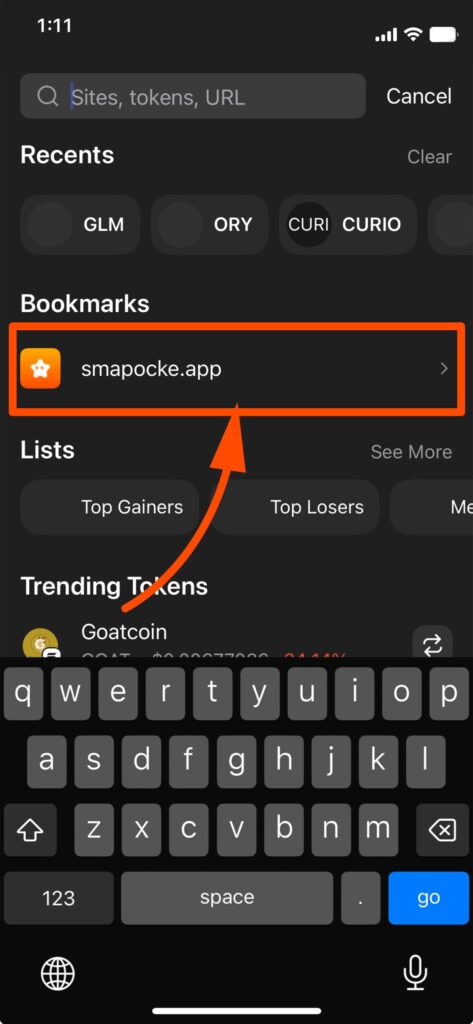
Smapocke - How to Get Started - STEP 2 – Using It Again (Second Time and Beyond)


5. A screen with “SOL Connect” will appear.
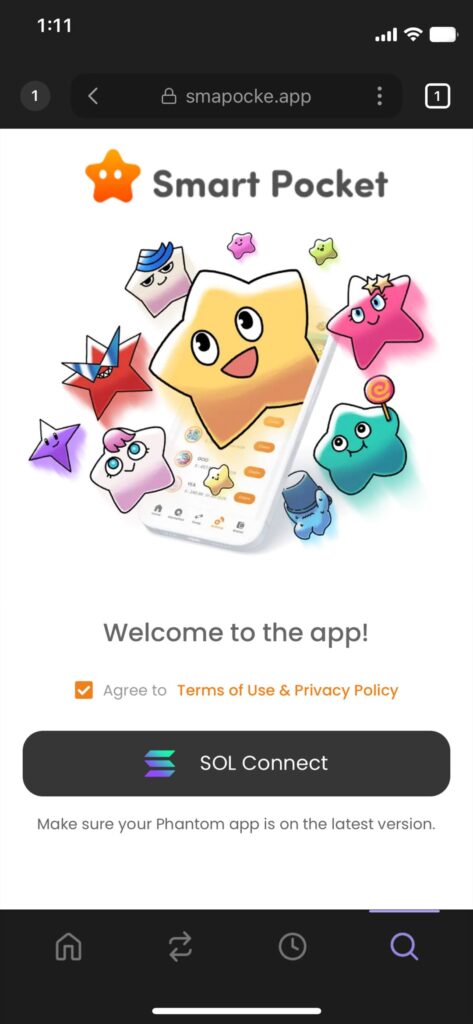
Smapocke - How to Get Started - STEP 2 – Using It Again (Second Time and Beyond)


If you see a number (e.g., “1”) instead of the “+” icon

1. Tap the number icon at the top right.
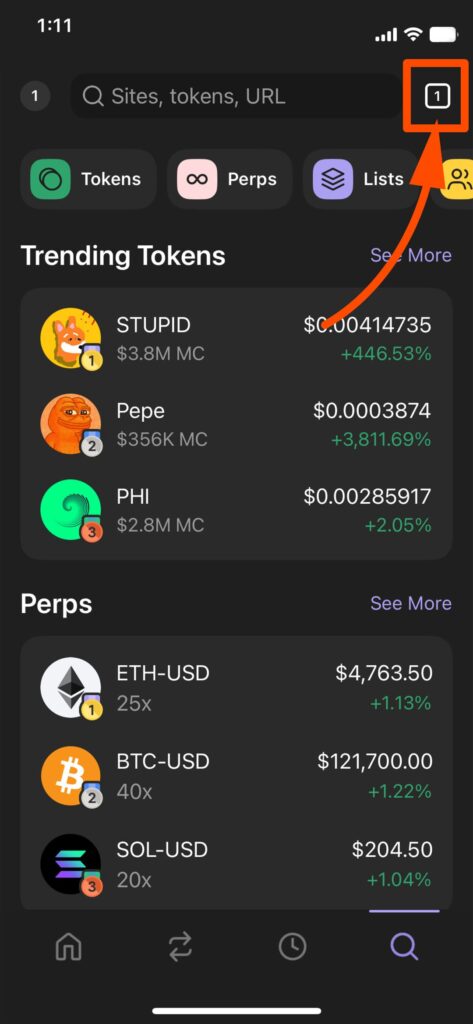
Smapocke - How to Get Started - STEP 2 – Using It Again (Second Time and Beyond)

 
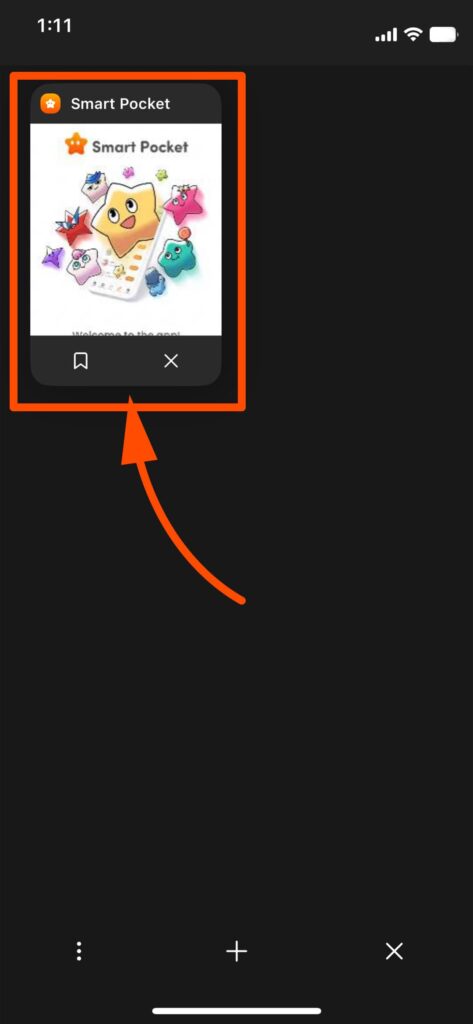
2. The app you had previously opened will appear.
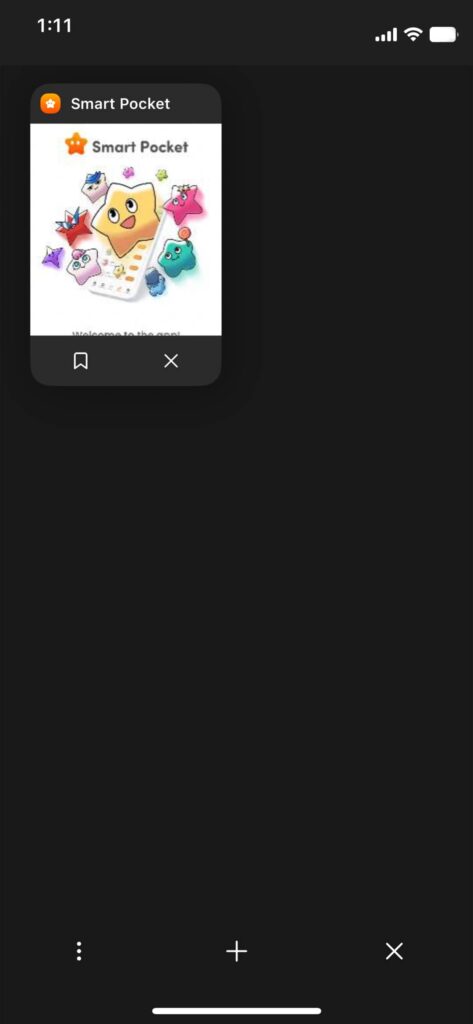
Smapocke - How to Get Started - STEP 2 – Using It Again (Second Time and Beyond)

 
3. Tap the Smapocke app screen.

Smapocke - How to Get Started - STEP 2 – Using It Again (Second Time and Beyond)

 
4. A screen with “SOL Connect” will appear.
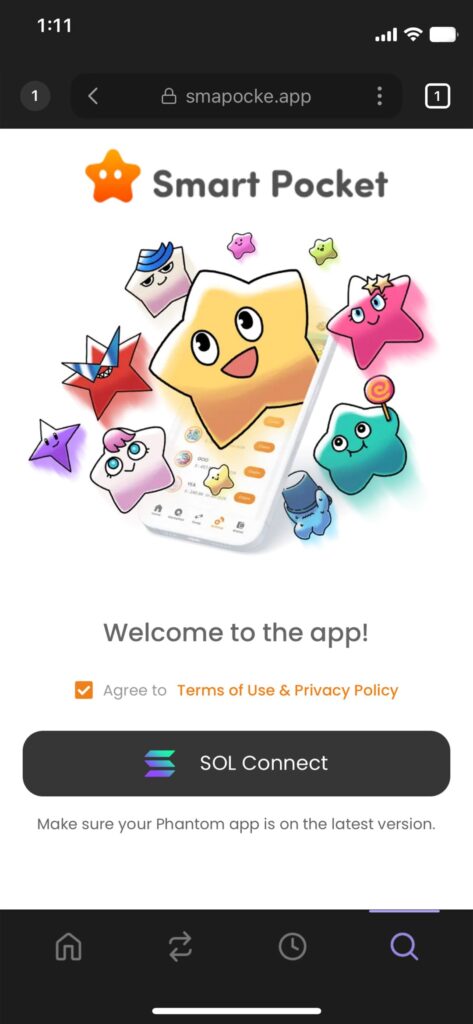
Smapocke - How to Get Started - STEP 2 – Using It Again (Second Time and Beyond)

(Depending on the situation, a slightly different screen may appear.)


3. Connect: Link Smapocke with Phantom Wallet

1. Tap “SOL Connect.”
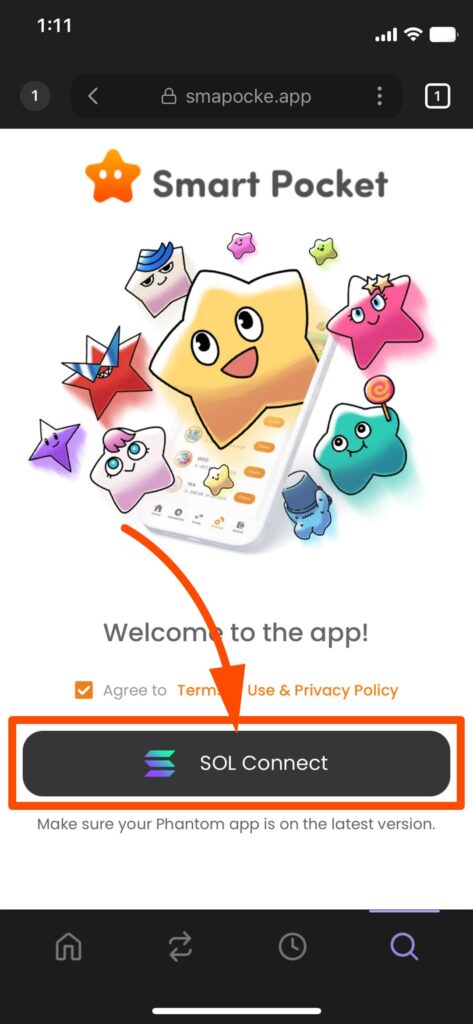
Smapocke - How to Get Started - STEP 2 – Using It Again (Second Time and Beyond)

(Make sure the box for “Agree to Terms of Use & Privacy Policy” is checked.)


2. When “Sign Message” appears, tap Confirm.
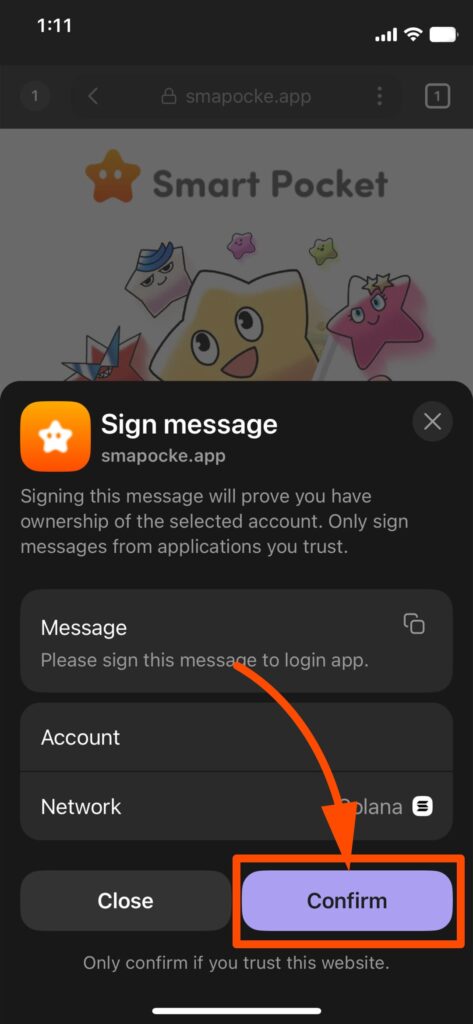
Smapocke - How to Get Started - STEP 2 – Using It Again (Second Time and Beyond)


3. Once the Smapocke App Home screen appears, the process is complete.
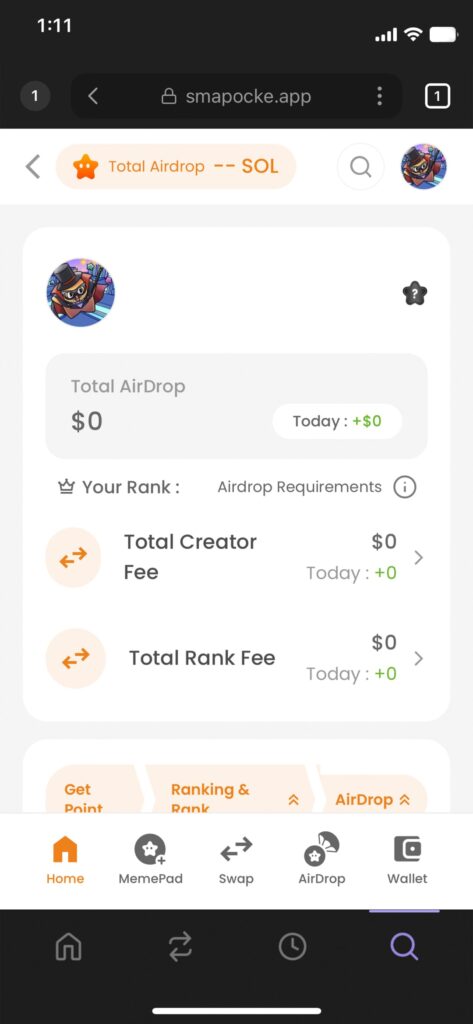
Smapocke - How to Get Started - STEP 2 – Using It Again (Second Time and Beyond)


Make the Most of Smapocke App!

Smapocke offers plenty of features to make your experience even more rewarding.
The more you use it, the more points you can earn through airdrops—and there are lots of other fun perks too.

Give it a try and see how much you can benefit!


How to Get Started
Disclaimer The information on this site is current as of the date noted at the top of each article.It is provided for informational purposes only and is not intended as investment advice or solicitation. While we strive for accuracy, we cannot guarantee the completeness or correctness of all information, and content may be changed or removed without notice. We are not responsible for any damages resulting from the use of information on this site. Reproduction or reuse of any content from this site without prior permission is prohibited.
Share on Social Media
Copied title and URL