The Smapocke ( Smart Pocket ) App includes a Swap feature that allows you to easily exchange cryptocurrencies and tokens.
In simple terms, swapping is the process of converting one cryptocurrency or token you hold into another—it’s basically like “currency exchange.”
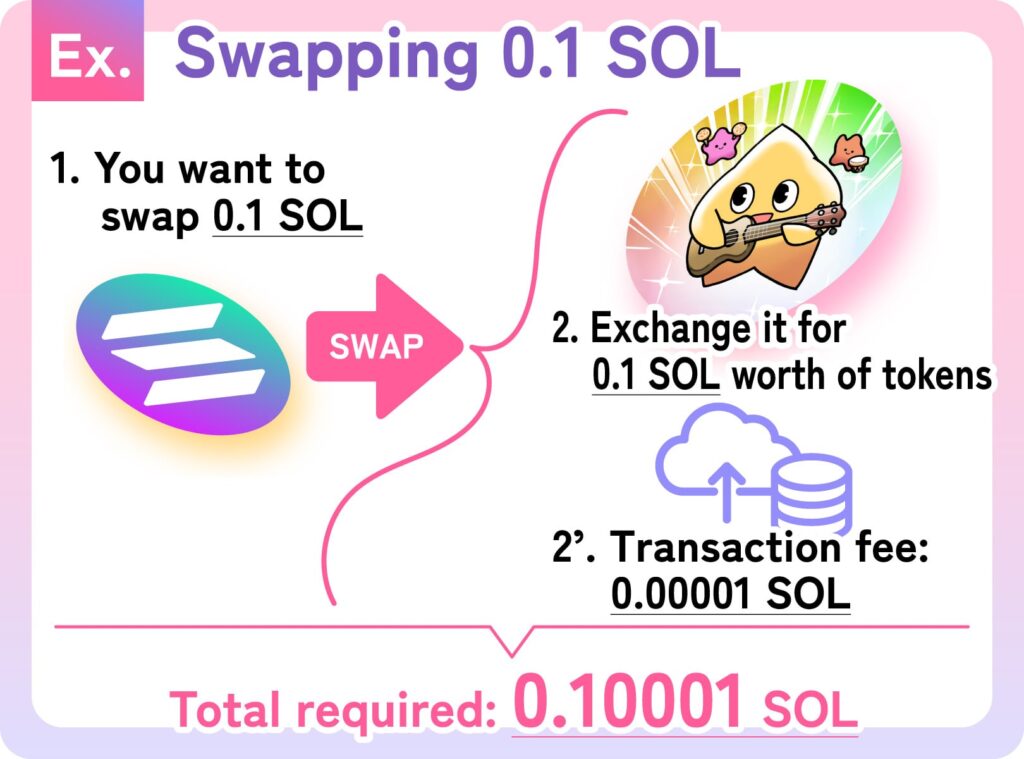
Unlike exchanging 1,000 yen for ten 100-yen coins, it’s closer to exchanging currencies at a foreign exchange counter. A small transaction fee is required, so it’s wise to keep a little extra balance for smooth transactions.
This swap feature can be used on the Swap screen, MemePad screen, or Wallet screen.
(In this article, we’ll explain how to use it on the Swap screen.)
Try swapping the cryptocurrency or token you’re interested in!
How to Use the Swap Feature
1. Tap Swap at the bottom of the screen

2. The Swap screen will appear
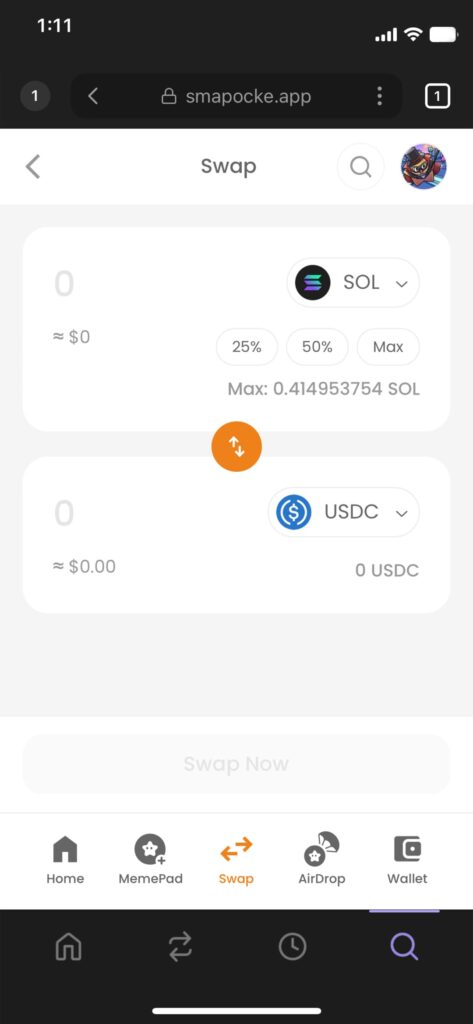
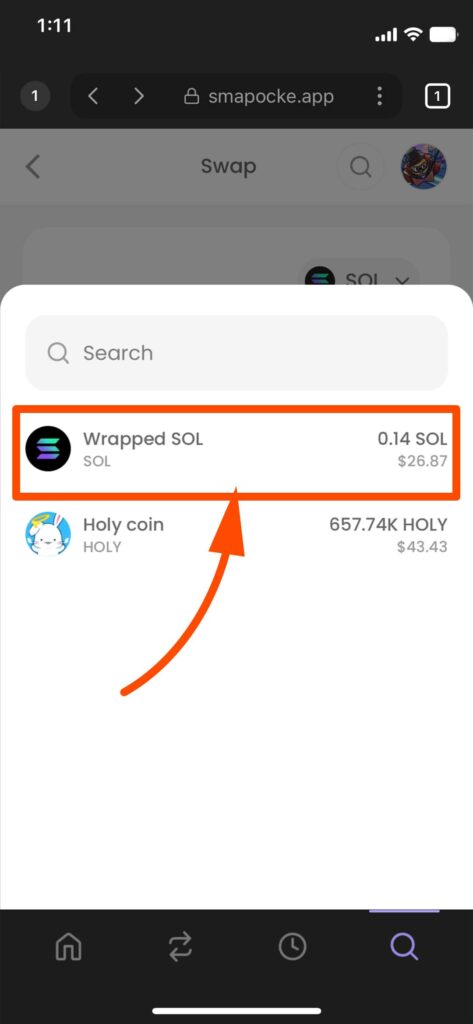
3. Select the cryptocurrency or token you want to swap from
Choose from the assets in your Phantom Wallet. By default, “SOL” is selected, so if that’s fine, you can skip this step.
(1) Tap the icon.
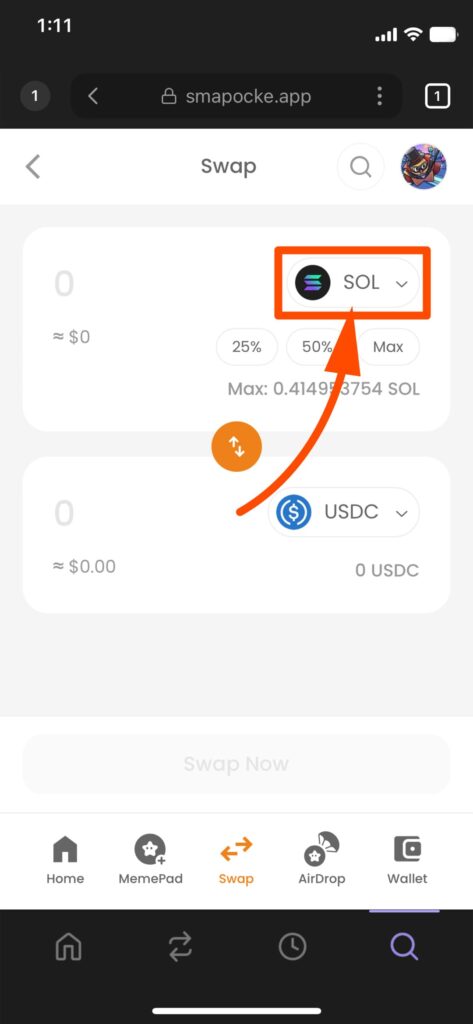
(2) A selection screen will appear, then choose your cryptocurrency or token.(Here, select “SOL,” displayed as “Wrapped SOL.”)
(If you have multiple tokens in your wallet, you can search by name or ticker code.)
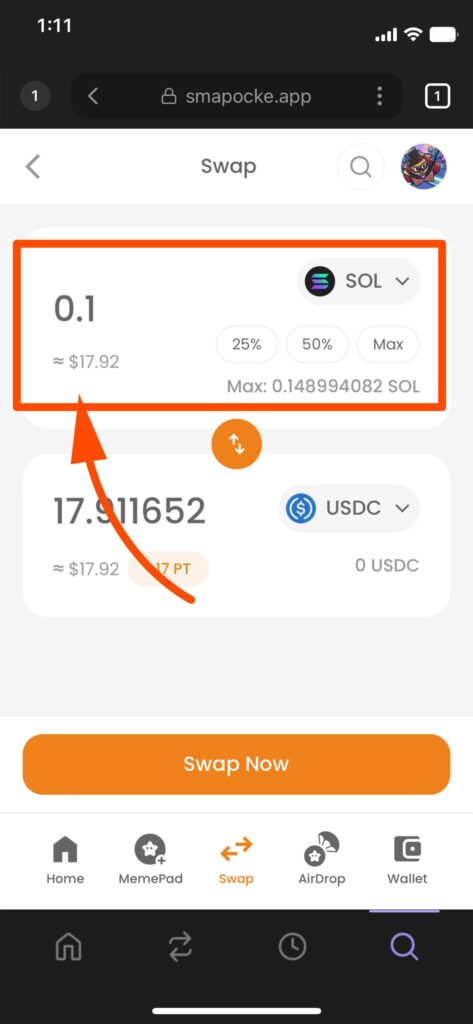
4. Enter the amount you want to swap
5. Next, select the cryptocurrency or token you want to swap to
(1) Tap the icon.
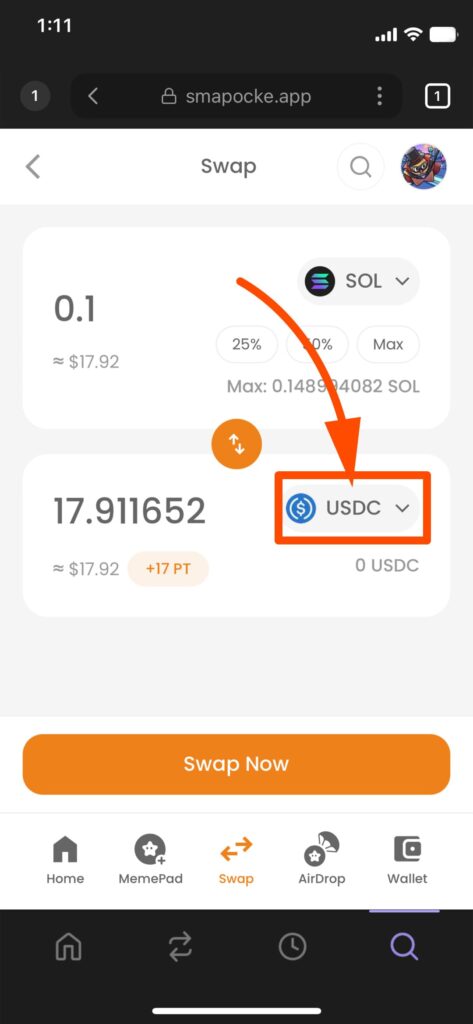
(2) Choose the cryptocurrency or token from the selection screen.
If it doesn’t appear, search for it using its ticker (a unique code). For example, if the token is HOLY COIN, its ticker might be HOLY. Enter the ticker or token name to find it.
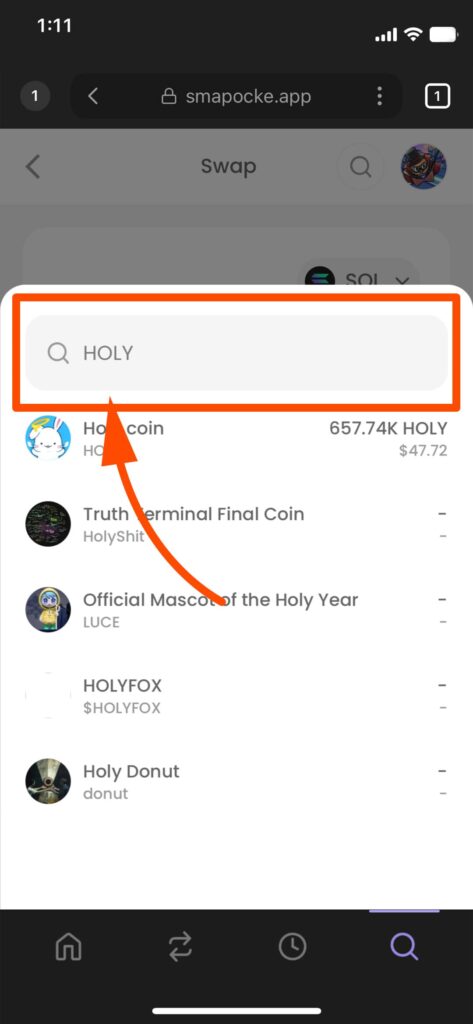
(3) Once your desired token appears, tap it

6. The swappable amount will automatically appear
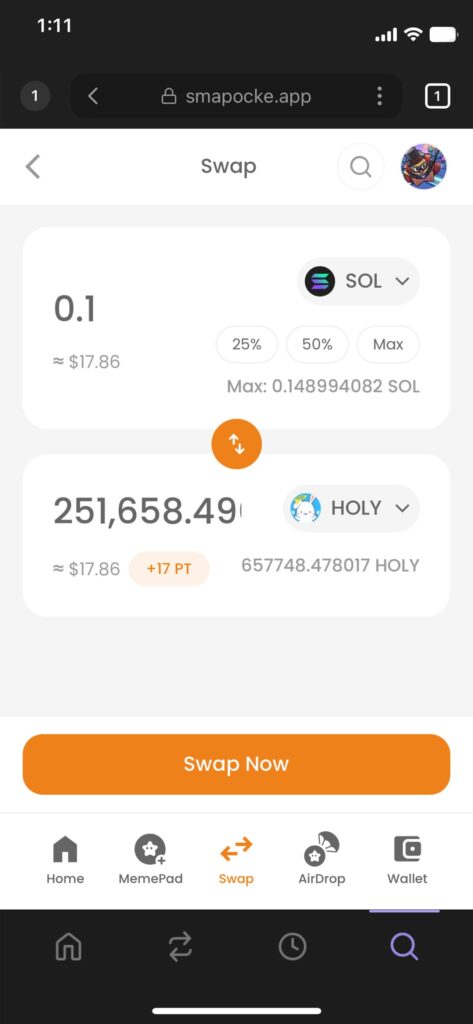
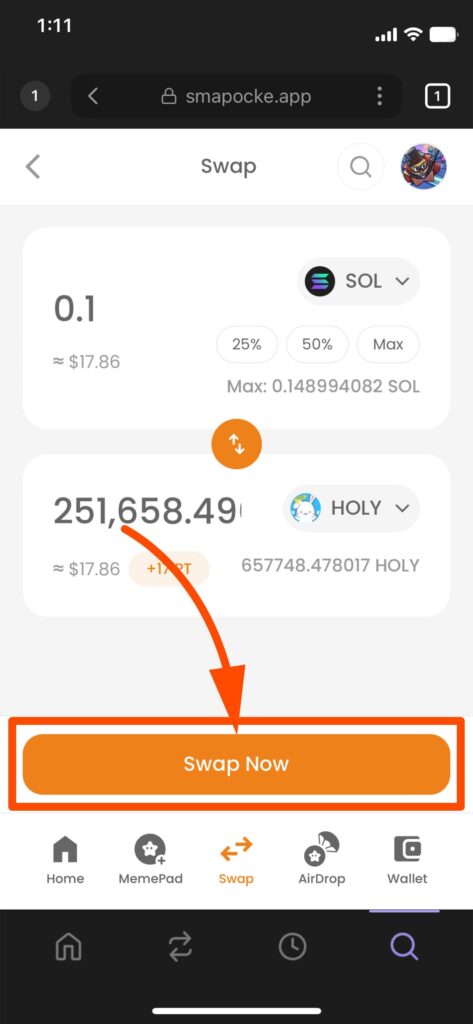
7. Tap Swap Now
8. A confirmation screen will appear → Tap Confirm
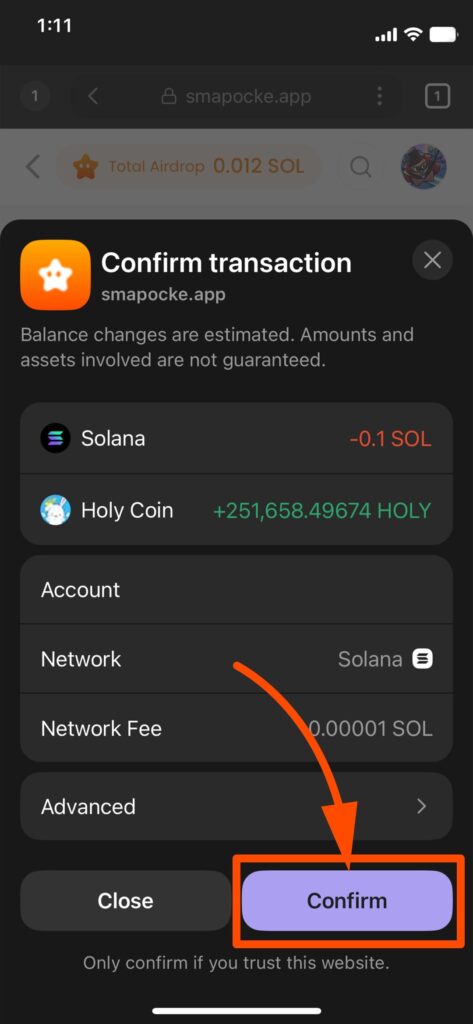
Note 1: A transaction fee (the cost of recording on the blockchain) is required. It’s usually very small, but make sure to account for it in your input.
Example: If you want to swap 100, and the fee is 0.05, you’ll actually need 100.05. Leaving a little extra balance ensures smooth swaps.
Note 2: If you don’t have enough for the fee, an error will occur. Adjust your input and try again.
9. A message will appear: “Swap transaction sent successfully!”
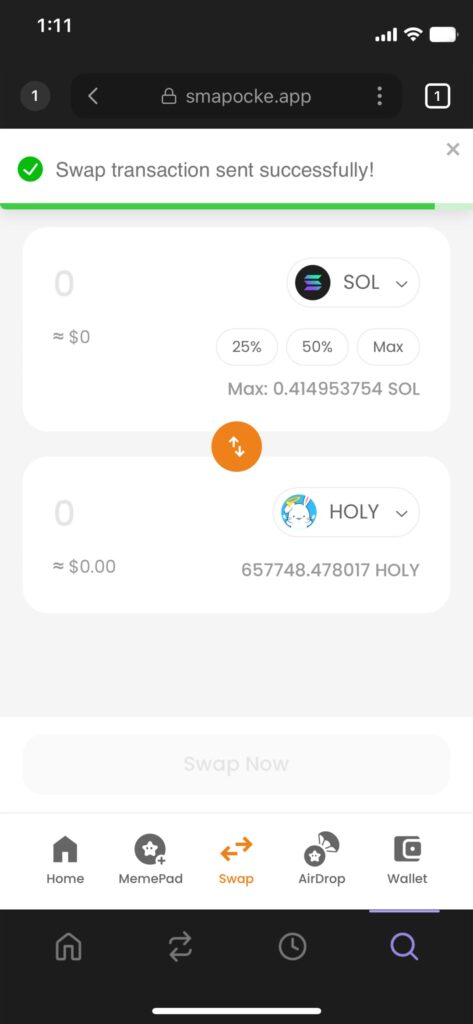
That’s it—the swap is complete!