The Smapocke ( Smart Pocket ) App includes the MemePad feature.
Here, you’ll find a wide variety of original tokens that can only be purchased through Smapocke.
You can buy or swap them anytime with ease. Of course, well-known cryptocurrencies are also available, making MemePad a convenient trading platform as well.
What is MemePad?
MemePad is a platform where creators can easily launch and distribute Meme Coins—cryptocurrencies known for their trends, potential, and high volatility—to the global market.
Here, new and promising tokens are constantly being launched, and anyone around the world can buy or swap them instantly.
Browsing through MemePad is fun! You can discover tokens created by your favorite creators, interesting tokens with unique ideas, tokens with strong future potential, or those expected to rise in value.
Even just exploring can be exciting enough to spend hours on!
Plus, whenever you buy or swap tokens or cryptocurrencies through MemePad, you’ll also earn points within the Smapocke app. That means you can enjoy both trading and point rewards—a truly “super-beneficial” feature.
Try purchasing or swapping tokens and cryptocurrencies that catch your eye!
How to Use the MemePad Feature
01: Open the MemePad screen
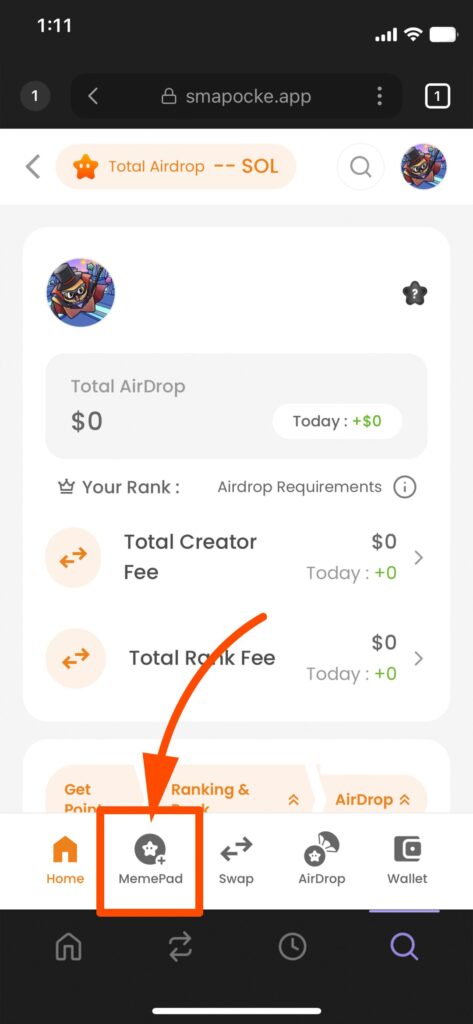
1. Tap “MemePad” in the bottom menu
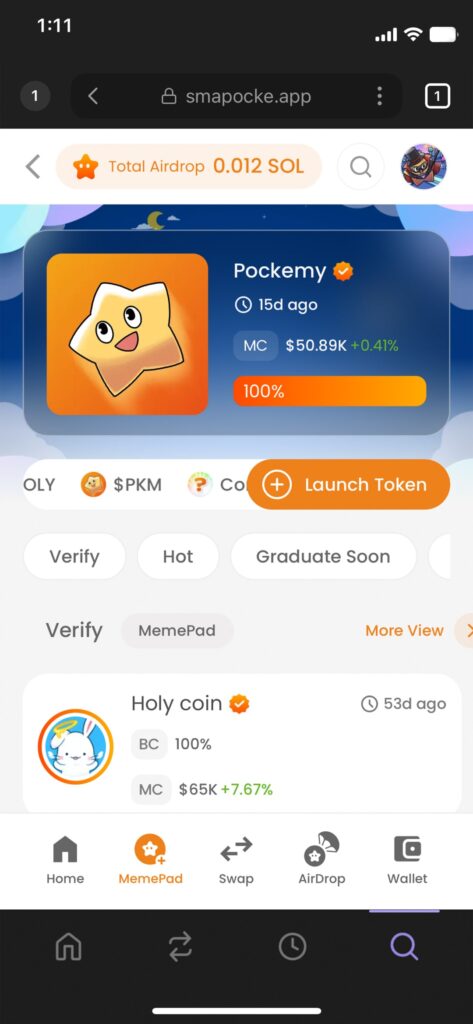
2. The MemePad top page will be displayed
02: Find tokens or cryptocurrencies that interest you
There are multiple ways to discover tokens and cryptocurrencies inside MemePad.
Whether you want to search for a specific token, browse tokens you’re curious about, or just look for hidden gems, MemePad provides various methods tailored to your needs.
Ways to Search (You’ll definitely find what you want!)
- Search: Search by token/cryptocurrency name or ticker (e.g., SOL, HOLY).
- Verify: Displays tokens officially verified by Smapocke.
- Hot: Shows trending tokens (switchable between DEX and MemePad).
- Graduate Soon: Tokens that are about to be listed on DEX.
- Highest Market Cap: Ranking of tokens attracting funds worldwide (switchable between DEX and MemePad).
- Listed Dex: Tokens already listed on DEX.
- New: Recently launched tokens.
- MyTokens: Tokens you’ve personally created as a creator.
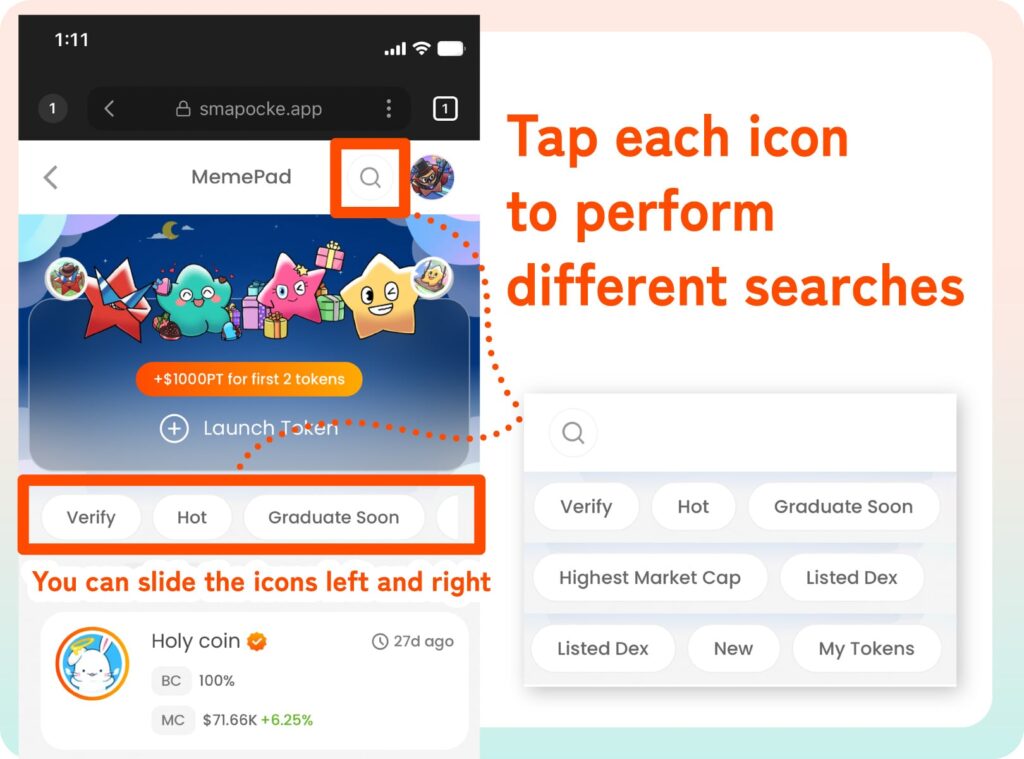
Tap the Search (magnifying glass) icon to display the search bar.
Tapping icons like Verify–MyTokens will take you to the corresponding category, and tapping More View will open the full list.
Try out different search methods to find tokens you want to support, purchase, or add to your favorites!
03: Buy or Swap Tokens and Cryptocurrencies You Want to Support
Each token or cryptocurrency has its own detailed page with a price chart and transaction options.
Depending on the type, you’ll see either “Buy” or “Swap”.
A: Buy → For original tokens launched inside MemePad
B: Swap → For tokens or cryptocurrencies already listed on DEX/CEX
Although the screen looks slightly different, the principle is the same:
You’re simply exchanging your existing coins for new ones you want to own.
So, if you see Buy on the screen, you might think:
“Ah, this is a MemePad-only token! Maybe it could grow big!”
A: When “Buy” is Displayed
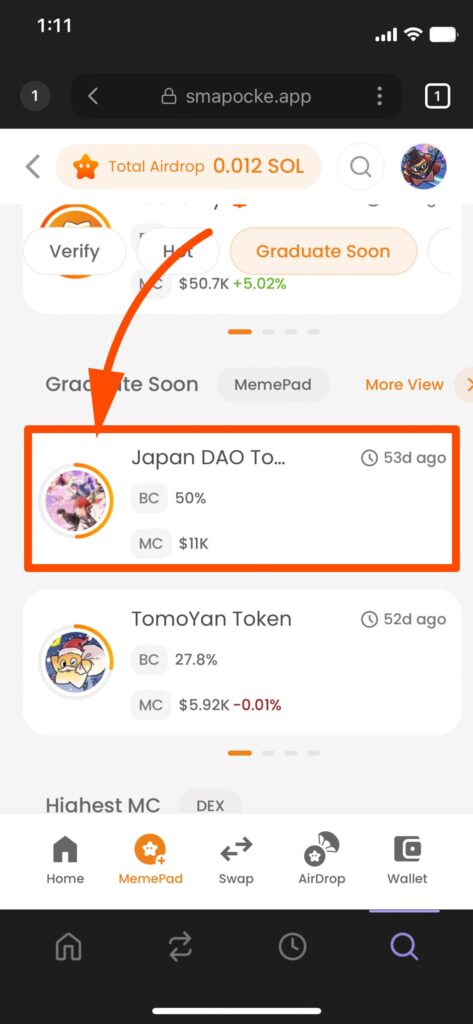
1. Select the token you want to buy
(Example: a token listed under Graduate Soon)
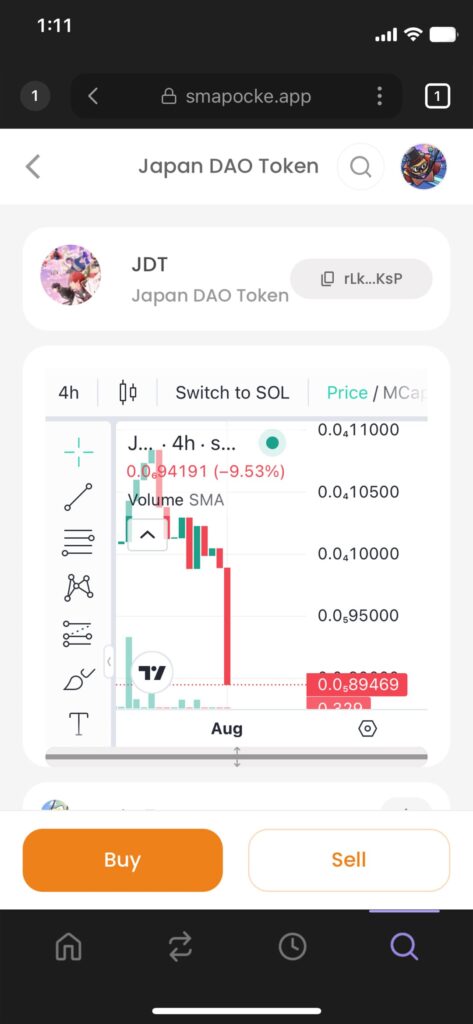
2. The token’s detail page (with price chart) will be displayed
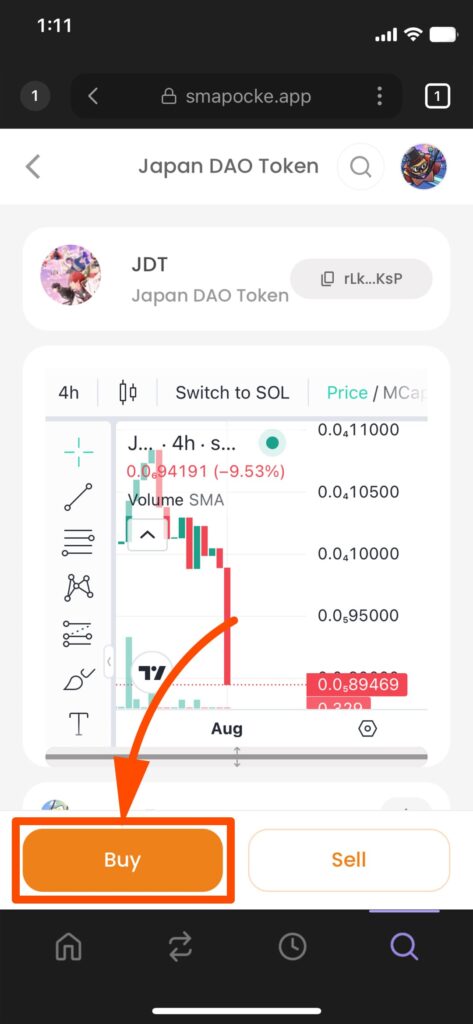
3. Tap Buy
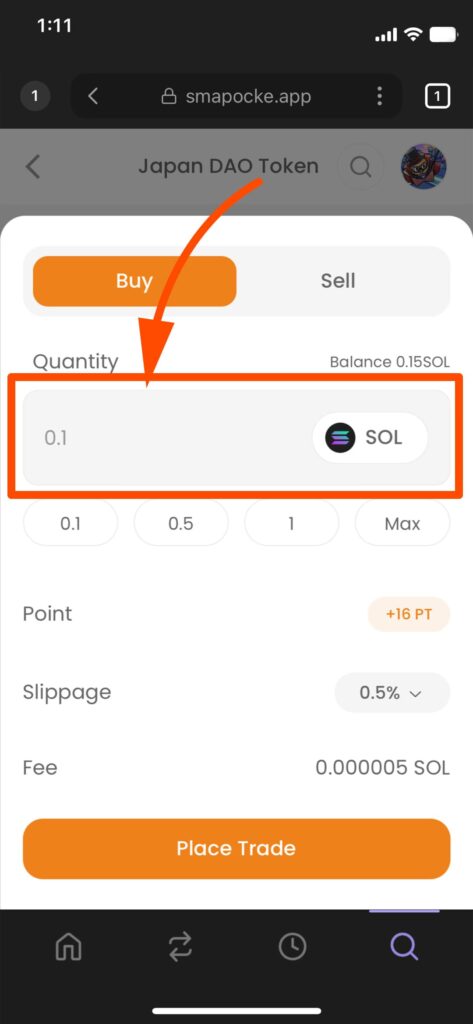
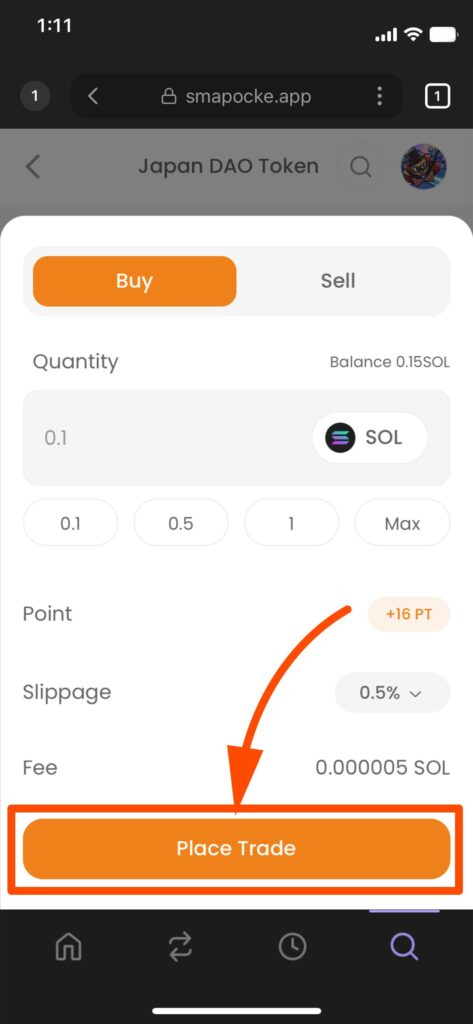
4. Enter the amount to swap
(Only SOL is available for purchase at this time (as of Aug 2025))
5. Tap Place Trade
6. Confirm the transaction details, then tap Confirm
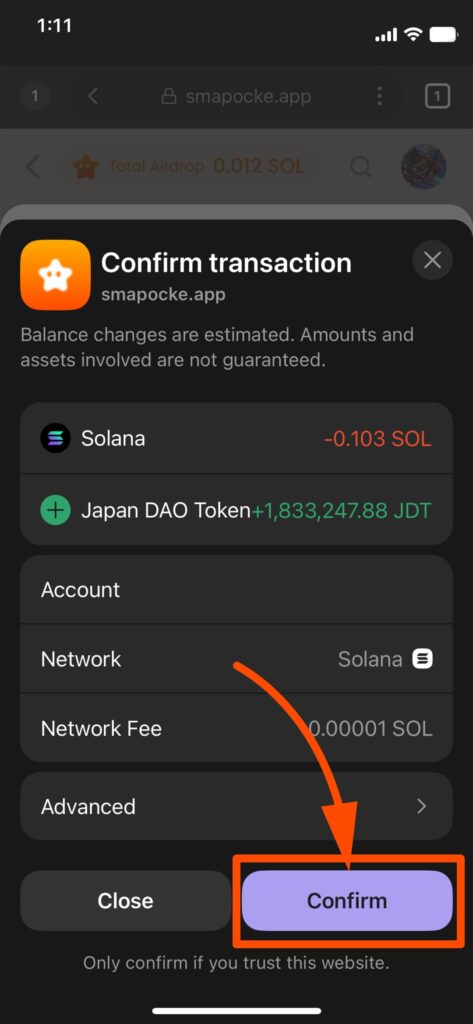
Note 1: A small transaction fee (blockchain processing fee) is required.
For example, if you want to buy 100 tokens and the fee is 0.05, you’ll actually need 100.05.
Make sure you leave a little buffer in your wallet to ensure the purchase succeeds.
Note 2: If the fee is insufficient, the transaction will fail.
In that case, reduce the quantity slightly (subtract the fee amount) and try again.
7. Once you see “Purchase Successful!”, the process is complete!
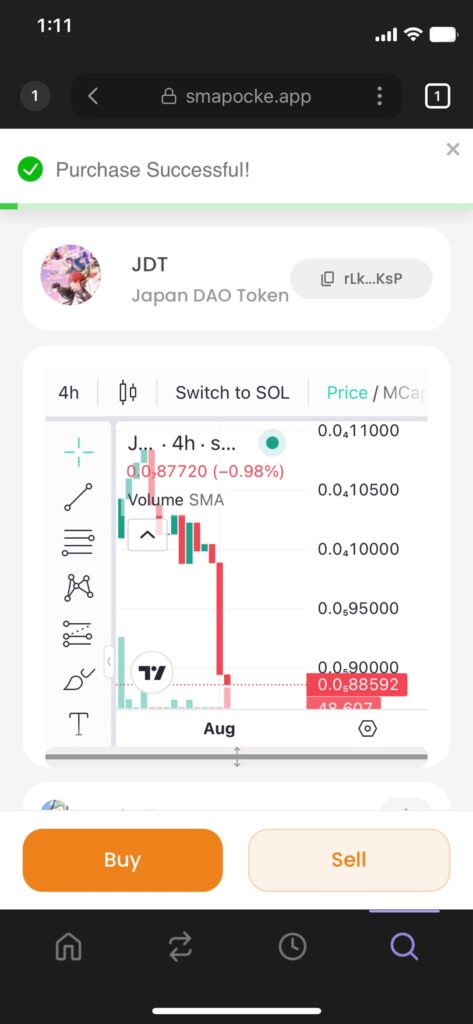
That’s it—the Purchase is complete!
B: When “Swap” is Displayed
1. Select the token or cryptocurrency you want to swap
(Example: a token listed under Listed Dex)
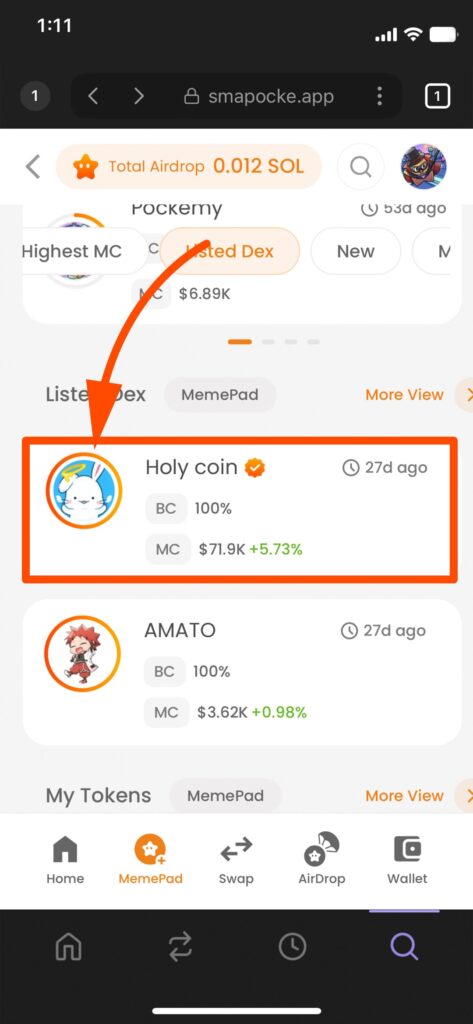
2. The token’s detail page (with price chart) will be displayed
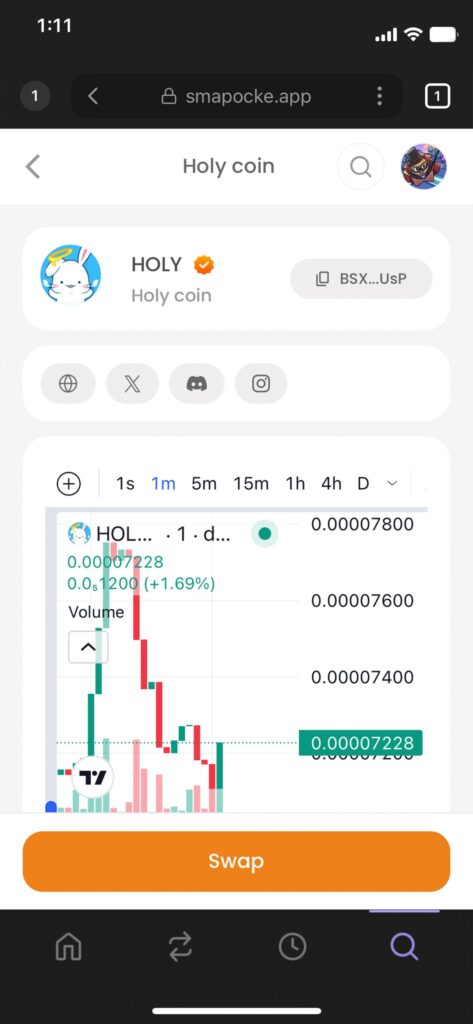
3. Tap Swap
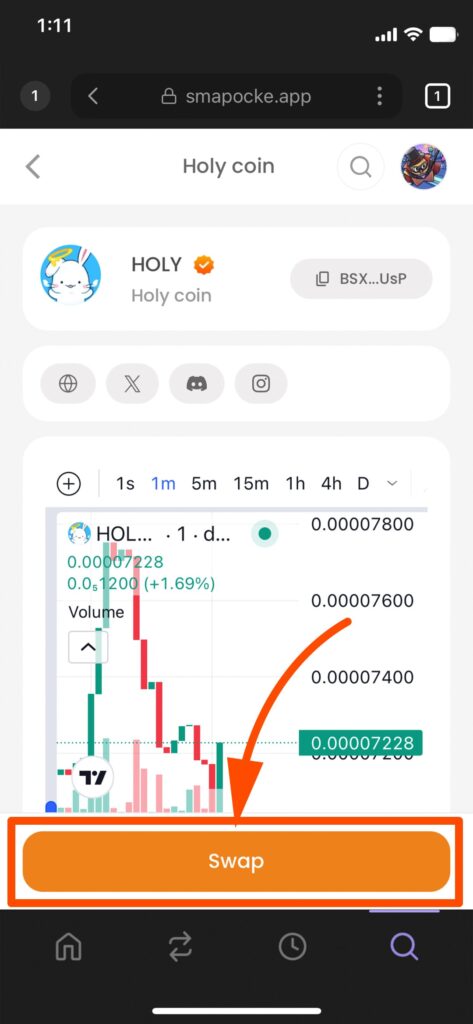
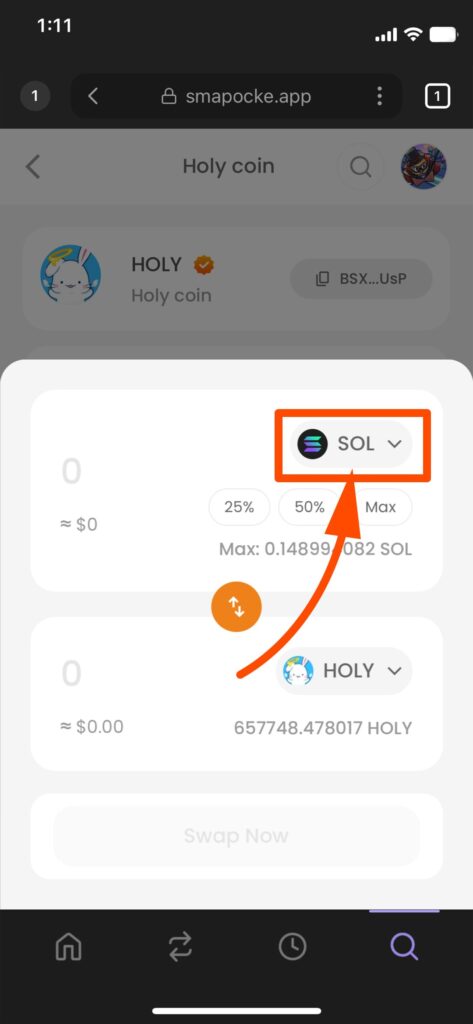
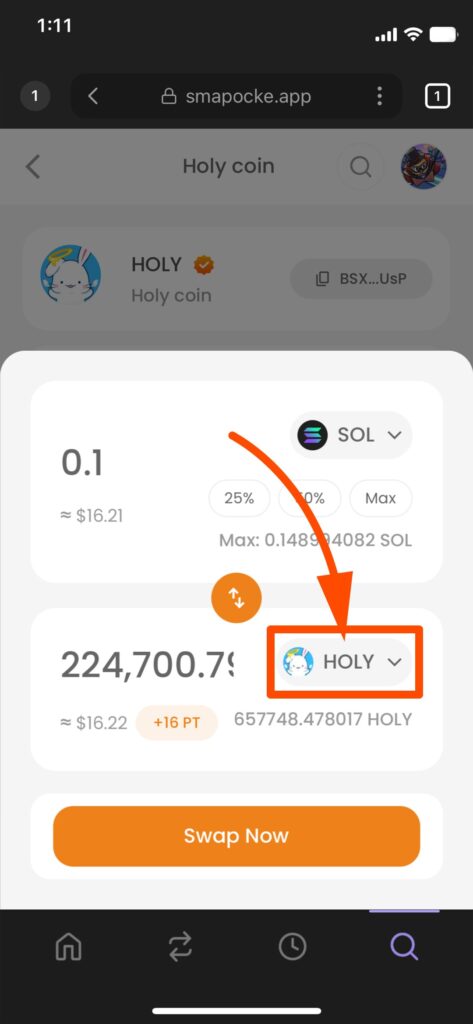
4. Choose the token/cryptocurrency you want to use for swapping
By default, SOL is pre-selected. If that’s fine, skip this step.
Otherwise:
(1) Tap the coin icon.
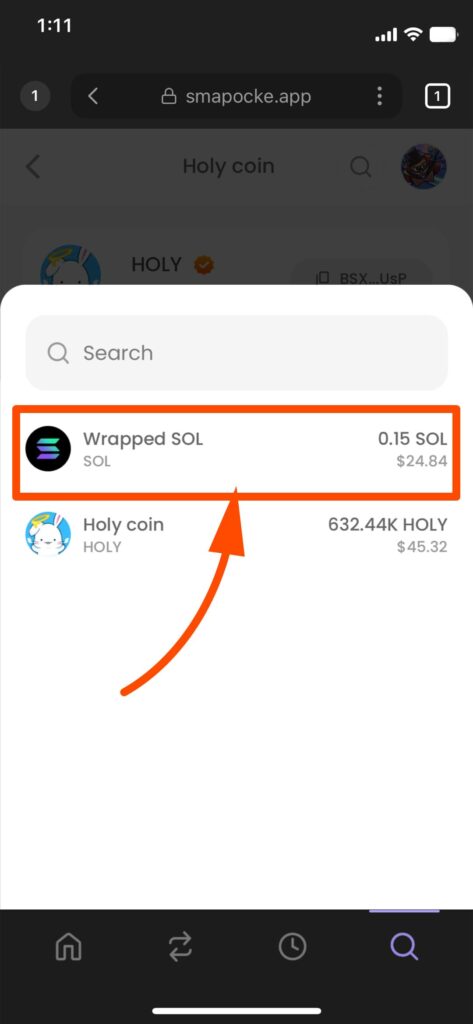
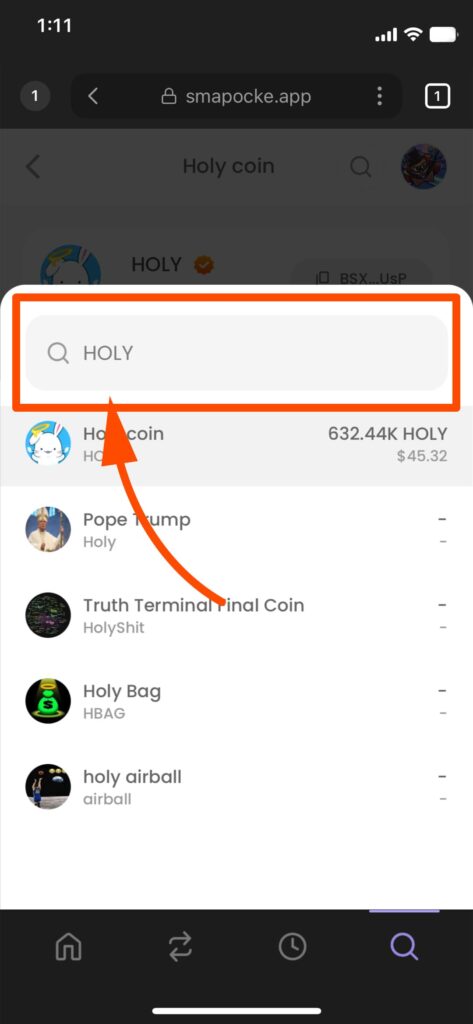
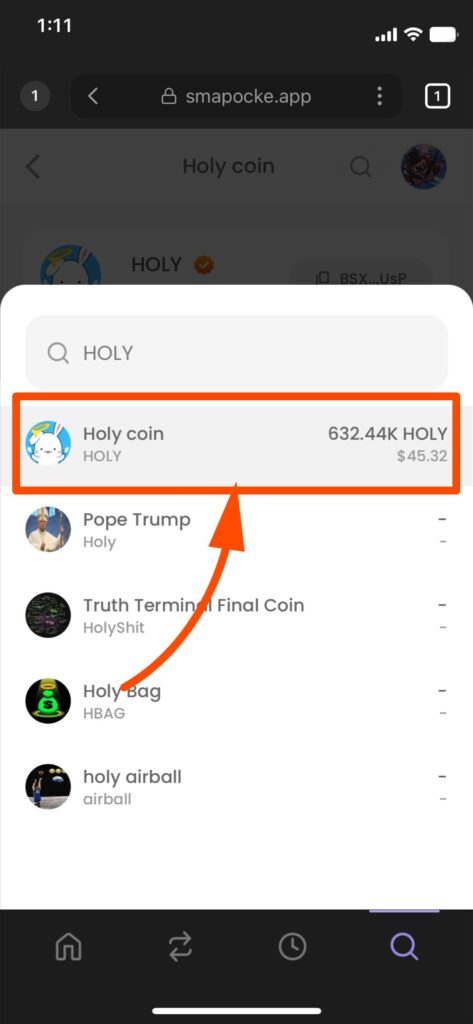
(2) From the selection screen, choose your desired token/crypto (e.g., Wrapped SOL).
(Use the search bar to find other tokens by name or ticker)
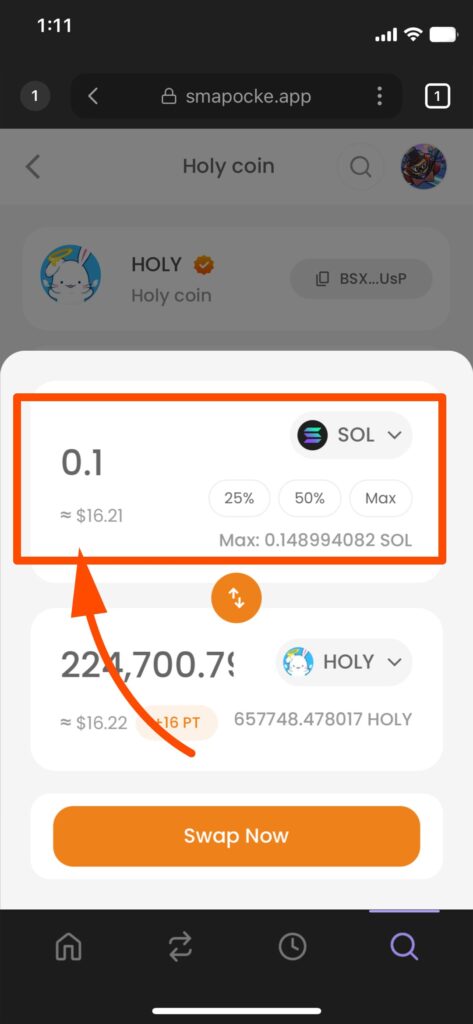
5. Enter the amount you want to swap
6. Tap Swap Now
7. Confirm the transaction details, then tap Confirm
Note 1: Note 1: As with “Buy,” swaps also require a transaction fee.
Note 2: Make sure to keep enough balance to cover it, or the swap will fail.
8. Once you see “Swap transaction sent successfully!”, the process is complete!
That’s it—the Swap is complete!